

Rmos POS
Orders and payments, right at the table.
Rmos POS brings the table, order and payment screens of your RMOS POS system to your phone. Take orders at the table, split the bill and complete the payment without leaving your guests.
The app is in testing. Ask support about early access
For service teams at hotels and restaurants using RMOS POS. Sign in with the account your business set up and work with the tables of your branch.
A service shift
With you at every step of service.
19:00
Opening a table
Tap an empty table, enter the guest count if prompted and start the order.
19:10
Taking the order
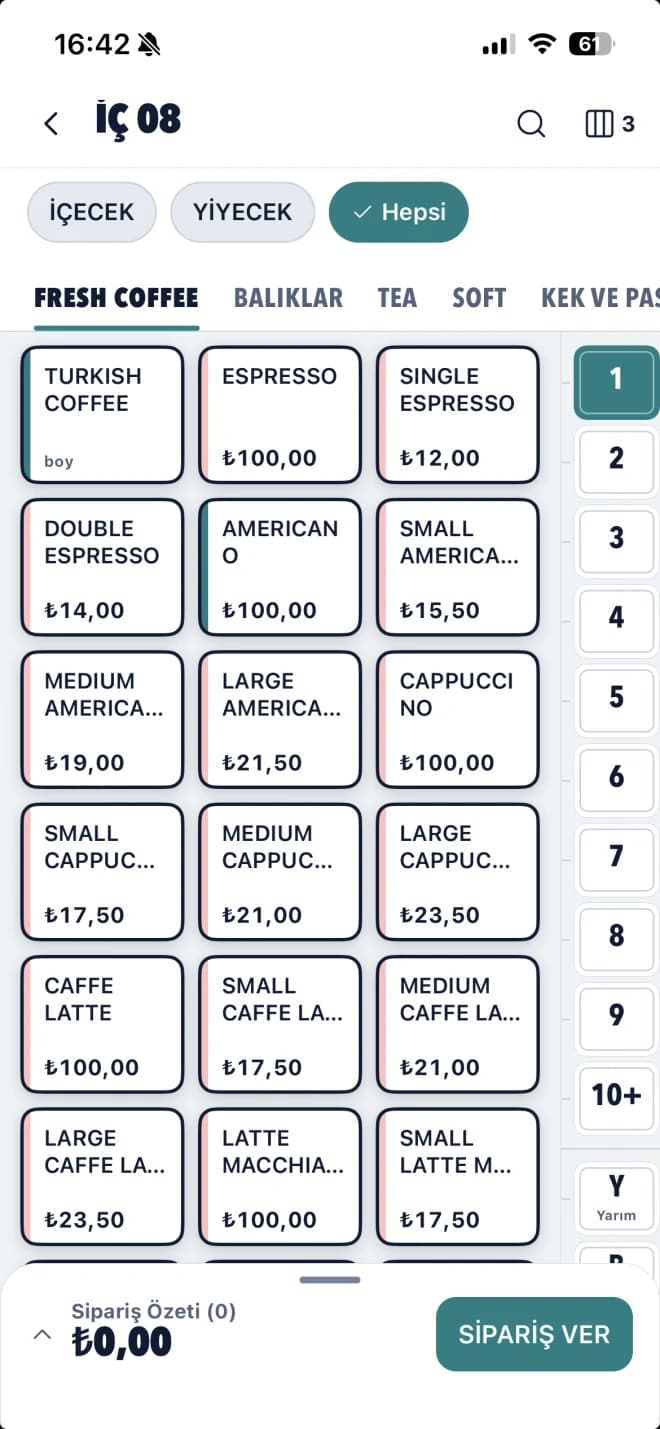
Choose products by category or search by name, add portion and notes, and send the order.
20:30
Moving tables
When guests move, transfer the table or the items you select to another table.
21:45
Settling the bill
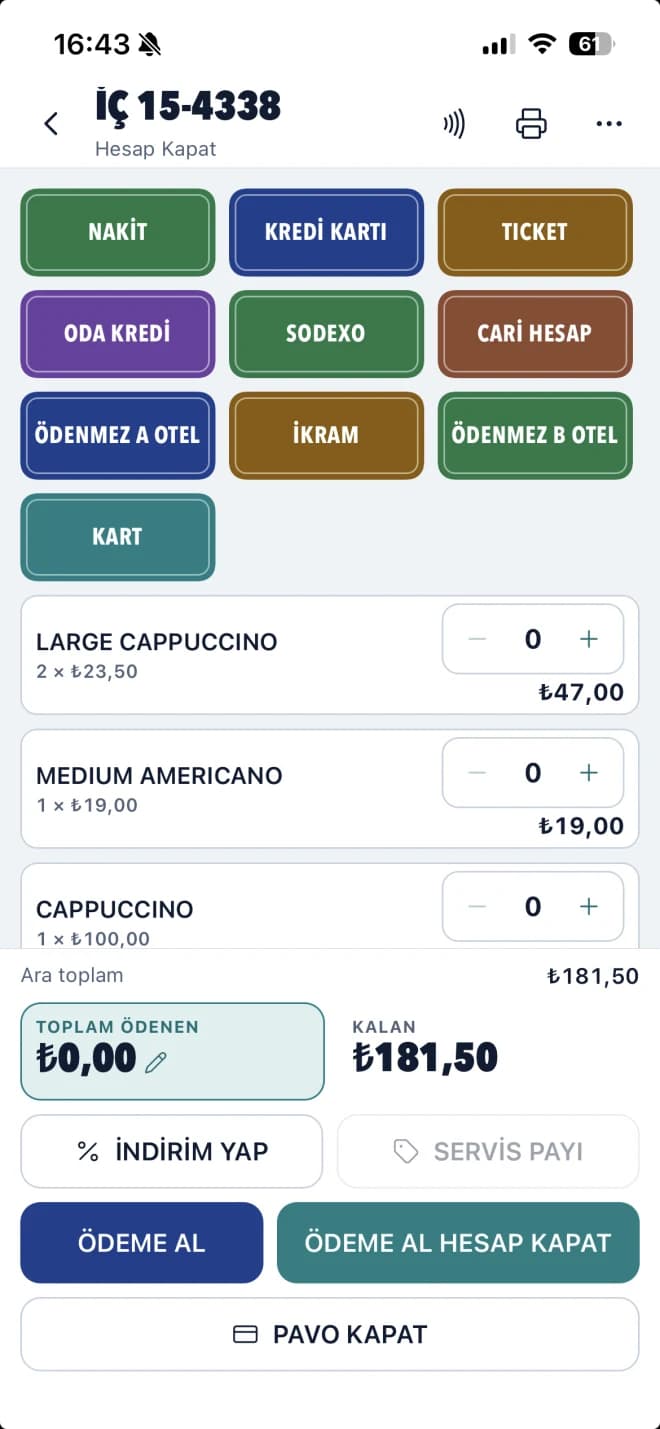
Split the bill by item or per person and take the payment at the table.
What you can do
From table to till, in one app.
Run tables, orders and payments from your phone; every order and payment is recorded directly in your RMOS POS system.
Tables
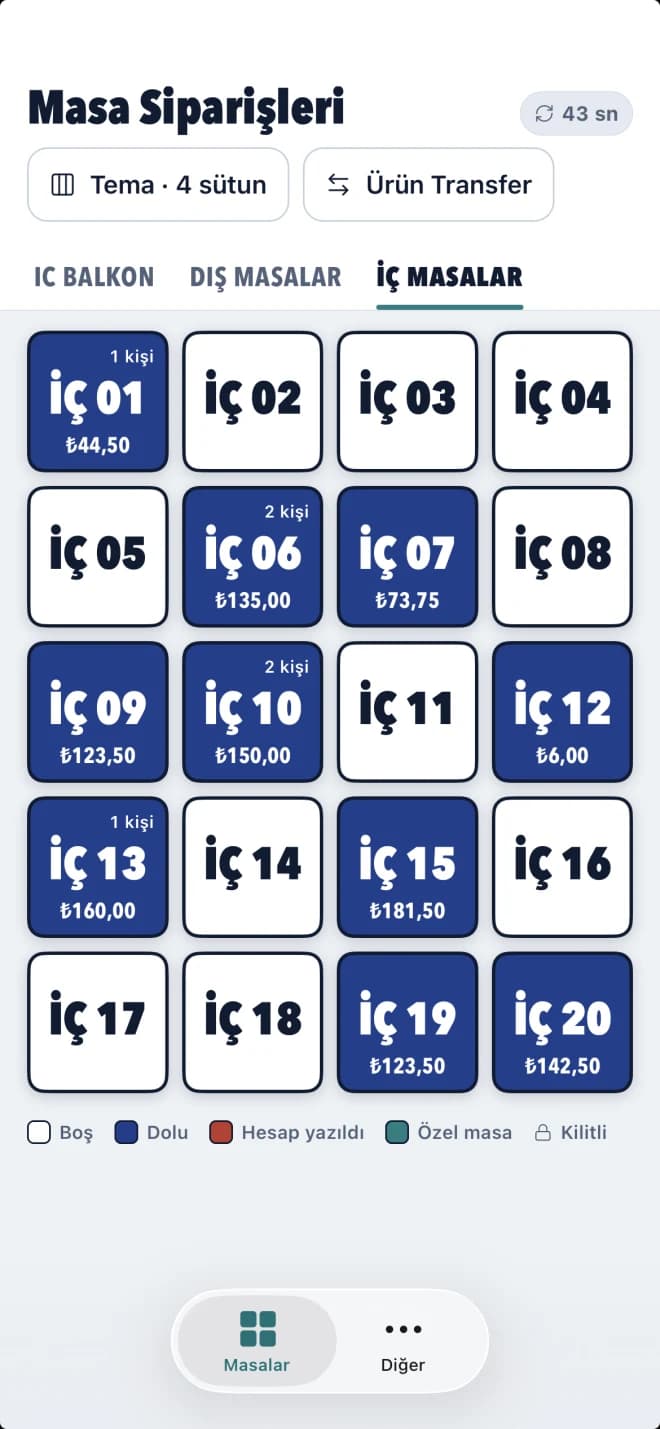
See tables grouped by area at a glance. Empty, occupied and billed tables are told apart by colour, and the screen refreshes on its own.
Ordering
Choose products by category or search the whole menu; add quantity, portion, size and notes, then send the order from the table.
Payment
Take an interim payment or close the bill with the payment types set up for your business, and post the amount to a guest’s room or a customer account.
Bill Splitting
Pay by item or split the bill per person; the paid and remaining amounts are shown at every step.
Card Reading
Hold a room card or prepaid card to the phone; on devices without NFC, type the card number in.
Transfers & Discounts
Move a table, transfer selected items to another table, and apply a percentage or fixed-amount discount to the bill.
Inside the app
Take a closer look at Rmos POS.
Real screens from Rmos POS on iPhone. Follow your tables, take the order and close the bill at the table.
See your tables at a glance
Switch between areas and tell each table’s status by its colour.
Take the order at the table
Choose products by category or search, and add portion and notes.
Close the bill at the table
Choose the payment type, split the bill and take the payment.
Screenshots from the iPhone app, shown in Turkish; the app is also available in English. Tables, products and amounts reflect the time of capture; in the app you see your own business’s tables, products and payment types.
How it works
Start with your business account.
Sign in to Rmos POS with your business’s username and password, then enter your staff code and choose the branch you work at. Tables, products and payment types come from your RMOS POS system, and only the branches you are authorised for are listed.
Privacy and account matters
Learn how Rmos POS processes your data and find the steps to submit requests about your account and personal information.